CRM and client portal
Included in Core
- Share progress without chasing emails
- Keep contacts and companies together
- Invite clients without paying for more seats
Clients and support
Keep contacts together, share projects and documents, and handle client requests with support tickets.
Included in Core
Handle client requests with support tickets and keep the related contacts and companies together.
Keep people and companies together.
Give clients access to the projects and documents they need.
Organise client requests with support tickets.
Read, compose and reply to emails in Kreiswork. Find the conversation alongside the client.
Personal connection, subject to provider availability and approval. Gmail is limited to approved pilot accounts. Messages are encrypted at rest.
See how to turn an email into a taskhello@studio-nord.example
Turn an email or support ticket into a task and keep the request’s context with it.
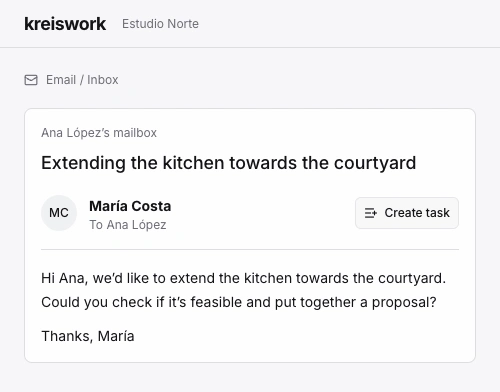
María asks you to review a kitchen extension. Open her email and choose ‘Create task’ to bring the request into the project.
 Enlarge view
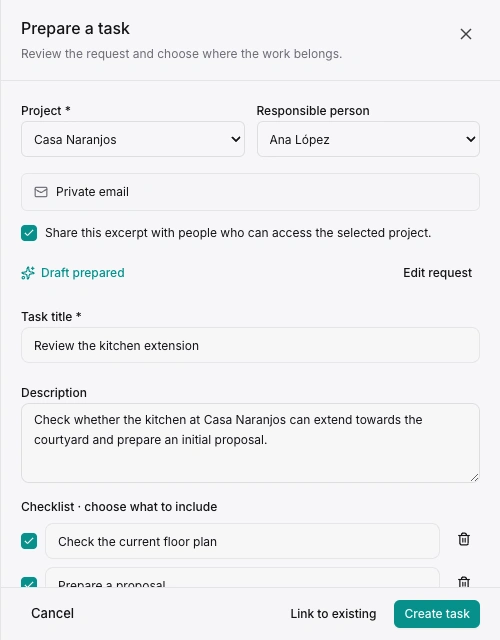
Choose the project and assignee. Review the title and checklist before creating the task. You decide which excerpt of the email to share.
 Enlarge view
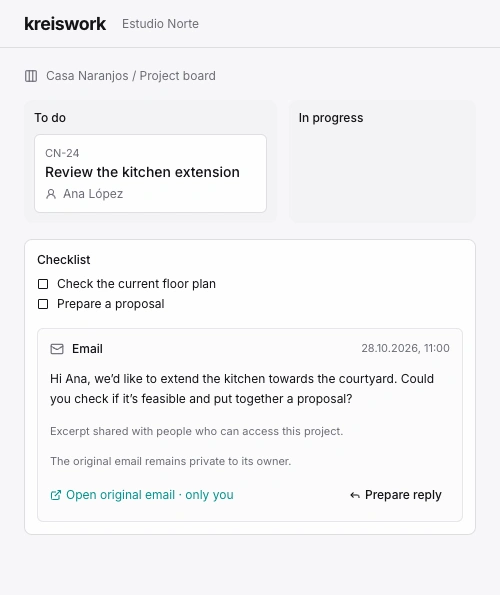
The task appears on the board with the excerpt you shared. The original email stays private.
 Enlarge view
In the demo, start with a sample support ticket.
Explore the demoTry the tasks, views and documents. Request a personal walkthrough if you would like help finding the right setup.